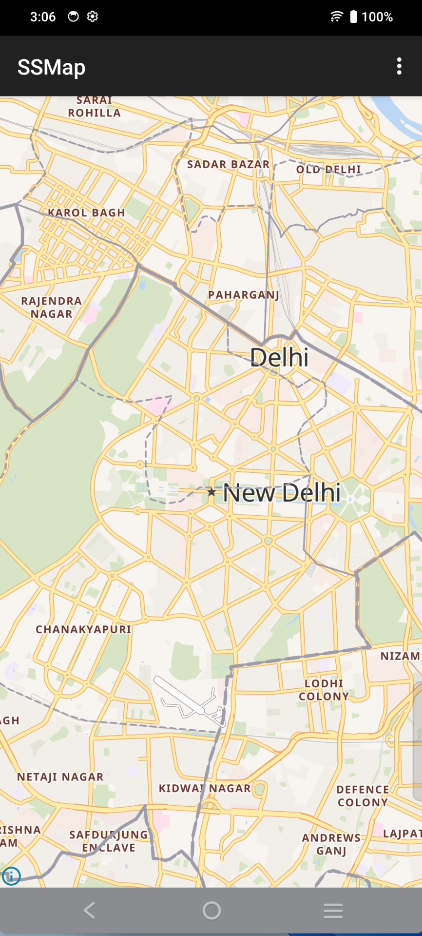
Show Map
Before using the map, initialize the library with your API key. Set up the SSMapView in your
XML layout and configure it in your Activity.
XML layout
<com.sovereignsolutions.map.SSMapView
    android:id="@+id/mapView"
    android:layout_width="match_parent"
    android:layout_height="match_parent" />
MainActivity.kt
import com.sovereignsolutions.map.SSMap
import com.sovereignsolutions.map.SSMapView
import org.maplibre.android.camera.CameraPosition
import org.maplibre.android.geometry.LatLng
import org.maplibre.android.maps.MapLibreMap

class MainActivity : AppCompatActivity() {
    private lateinit var mapView: SSMapView
    private lateinit var map: MapLibreMap

    override fun onCreate(savedInstanceState: Bundle?) {
        super.onCreate(savedInstanceState)

        // Initialize with API Key
        SSMap.setAPIKey(this, "YOUR_API_KEY_HERE")
        setContentView(R.layout.main_activity)

        mapView = findViewById(R.id.mapView)
        mapView.setStyle("YOUR_STYLE_URL_WITH_API_KEY") { style ->
            // Setup sources and layers here
        }

        mapView.getMapAsync { mapLibreMap ->
            map = mapLibreMap
            map.cameraPosition = CameraPosition.Builder()
                .target(LatLng(28.6139, 77.2090))
                .zoom(12.0)
                .build()
        }
    }

    // Remember to handle MapView lifecycle methods as well:
    // onStart, onResume, onPause, onStop, onLowMemory, onDestroy, onSaveInstanceState
}
See also: Get Started, Android Map SDK overview.