How It Works
A tracking session has five steps plus an automatic token refresh, and runs in one of two modes: SDK-managed login or App-managed token.
Overview
Two modes
Choose a mode with the skipLoginAndRegistration flag of initSDK() / initAndStartTracking().
- SDK-managed login (
skipLoginAndRegistration = false, the default) - the SDK gets the token and calls the login API for you. Use it when your backend is Intelomatic. - App-managed token (
skipLoginAndRegistration = true) - your app already has an access token from its own login flow and passes it to the SDK.
// SDK-managed login
final init = await TrackingSdk.initSDK(username: username);

// App-managed token
final initWithToken = await TrackingSdk.initSDK(
  username: username,
  skipLoginAndRegistration: true,
  callerAccessToken: accessToken,
);
Steps at a glance
| Step | SDK-managed login | App-managed token | Who sends it | Calls |
|---|---|---|---|---|
| 1. Get token | ✅ | Skipped | SDK | TRACKING_BASE_URL |
| 2. Log in | ✅ | Skipped | SDK | TRACKING_REGISTRATION_BASE_URL |
| 3. On duty event | ✅ | ✅ | Your app | Events API |
| 4. Location push (repeats) | ✅ | ✅ | SDK | TRACKING_SERVER_URL |
| 5. Off duty event | ✅ | ✅ | Your app | Events API |
| Token refresh (every 24 hours) | ✅ | Skipped | SDK | TRACKING_BASE_URL |
Sequence
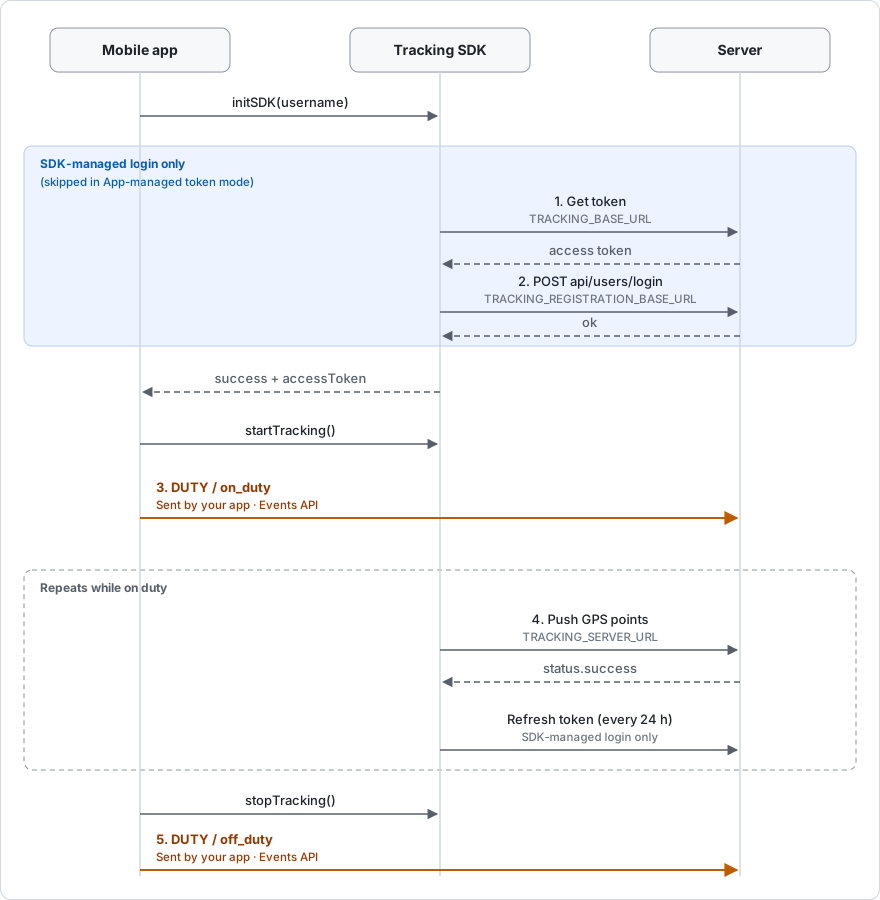
Orange arrows are requests your app sends. Dashed arrows are responses. Tap the diagram to open it full size.
Configuration
The SDK reads six values from Android BuildConfig in android/app/build.gradle.kts. Each value
tells the SDK where to send one kind of request.
buildConfigField("String", "TRACKING_BASE_URL", "\"YOUR_BASE_URL\"")
buildConfigField("String", "TRACKING_REGISTRATION_BASE_URL", "\"YOUR_REGISTRATION_BASE_URL\"")
buildConfigField("String", "TRACKING_SERVER_URL", "\"YOUR_PUSH_API_URL\"")
buildConfigField("String", "TRACKING_API_KEY", "\"YOUR_API_KEY\"")
buildConfigField("String", "TRACKING_CLIENT_ID", "\"YOUR_CLIENT_ID\"")
buildConfigField("String", "TRACKING_TENANT_NAME", "\"YOUR_TENANT_NAME\"")
| Field | SDK-managed login | App-managed token | Used for |
|---|---|---|---|
TRACKING_BASE_URL | ✅ | ✅ | Base URL for getting and refreshing the token |
TRACKING_REGISTRATION_BASE_URL | ✅ | — | Base URL for the login call, POST /api/users/login |
TRACKING_SERVER_URL | ✅ | ✅ | Full URL the SDK pushes GPS points to |
TRACKING_API_KEY | ✅ | — | API key sent with token requests |
TRACKING_CLIENT_ID | ✅ | — | Client ID sent with token requests |
TRACKING_TENANT_NAME | ✅ | ✅ | Tenant that receives the data |
✅ = required, — = not required. A required field left blank makes initSDK() fail with
SDK_CONFIGURATION_ERROR. Values in BuildConfig ship inside the APK, so do not treat them as
secret storage.
Steps
Step 1 - Get token
App-managed token: Skipped. The SDK uses callerAccessToken instead.
Calls: TRACKING_BASE_URL, with TRACKING_API_KEY and TRACKING_CLIENT_ID.
The SDK requests an access token inside initSDK(). Your app does not call a token endpoint.
On success, initSDK() returns a map that contains the token:
{
  "success": true,
  "message": "SDK initialized successfully",
  "accessToken": "<access token>"
}
Keep accessToken. Your app needs it for the on duty and off duty events.
initAndStartTracking() returns only a status message. To read accessToken in Dart, call
initSDK() first, then startTracking().
Step 2 - Log in
App-managed token: Skipped.
Calls: POST {TRACKING_REGISTRATION_BASE_URL}api/users/login.
Right after it gets the token, still inside initSDK(), the SDK calls the login API to sign the
user in for tracking. initSDK() reports success only when both the token call and the login call
succeed. Your app does not call this endpoint.
Set TRACKING_REGISTRATION_BASE_URL with a trailing slash, for example https://example.com/, so
the SDK builds https://example.com/api/users/login.
Step 3 - On duty event
App-managed token: Required.
Calls: the Events API on your tenant gateway.
The SDK does not send this event. Your app must send it, right after startTracking()
succeeds:
POST $BASE_URL/api/ndms2/events?api-key=<apiKey>
Authorization: Bearer <accessToken>
Content-Type: application/json

{
  "typeCode": "DUTY",
  "actionCode": "on_duty"
}
$BASE_URL is your tenant gateway, https://api-gw.sovereignsolutions.com/gateway/<tenant>. It
is not TRACKING_BASE_URL. See Authentication.
Use the accessToken from step 1, or your own token in App-managed token mode.
Step 4 - Location push
App-managed token: Runs, using callerAccessToken.
Calls: TRACKING_SERVER_URL, with the access token as a bearer token.
While tracking runs, the SDK sends batches of GPS points to TRACKING_SERVER_URL. Your app does
nothing in this step. If the device is offline, points are kept on the device and sent when the
network returns.
Each point identifies the user and the device:
| Field | Value |
|---|---|
driver | The username you passed to initSDK() |
trackerId | Device ID and username, <deviceId>@<username> |
timestamp | Time of the GPS fix, ISO 8601 UTC, for example 2026-07-25T04:30:00.000Z |
lat, lng | Position in decimal degrees |
To read positions back, use trackerId with the Tracking API.
Step 5 - Off duty event
App-managed token: Required.
Calls: the Events API on your tenant gateway ($BASE_URL, as in
step 3).
The SDK does not send this event. Your app must send it, right after stopTracking()
succeeds:
POST $BASE_URL/api/ndms2/events?api-key=<apiKey>
Authorization: Bearer <accessToken>
Content-Type: application/json

{
  "typeCode": "DUTY",
  "actionCode": "off_duty"
}
Token refresh
App-managed token: Skipped. The token comes from your app, so your app renews it.
Calls: TRACKING_BASE_URL, with TRACKING_API_KEY and TRACKING_CLIENT_ID.
The SDK refreshes the access token every 24 hours while tracking runs. The Flutter wrapper has no method to trigger a refresh manually.
Errors
The Android bridge in MainActivity.kt returns these codes as a PlatformException:
| Code | When |
|---|---|
USERNAME_REQUIRED | username is empty |
CALLER_ACCESS_TOKEN_REQUIRED | App-managed token mode, but no callerAccessToken was passed |
SDK_CONFIGURATION_ERROR | A required BuildConfig value is blank |
INIT_SDK_ERROR | The token call or the login call failed |
START_TRACKING_ERROR | Tracking could not start |
STOP_TRACKING_ERROR | Tracking could not stop |
UNSUPPORTED_ANDROID_VERSION | The device runs Android below 6.0 |
See also: Usage, Sample apps.